Your First Comp
This walkthrough builds the single most-repeated pipeline in the whole reference: a generator makes points, a projection node converts them from 3D world space to 2D screen space, and a render node draws a shape at each one. It takes about ten minutes and needs four nodes.
The screenshots on this page are the node reference images, so you can match the Inspector controls to the words. A screenshot of the finished comp is still to be added.
What you'll end up with
A Background node, and on it a ring of small pink hexagons. The defaults are literal: vArrayShapeRender draws six-sided dots in magenta until you tell it otherwise. Once that renders, every parameter in the chain is yours to play with — and the three Vonk nodes accept almost any generator you swap in at the front.
Before you start
- Vonk Ultra installed — see Install if not.
- A comp open in Fusion Studio or DaVinci Resolve, with the Nodes panel visible.
- No Lua knowledge required. Everything here is node wiring and Inspector controls.
Step 1 — Background
Add Fusion's native Background node. This is the canvas: vArrayShapeRender composites the shapes it draws over an image input, so the background is what they land on.
Step 2 — The three Vonk nodes
Add these the fast way: press Shift + Spacebar to open the Select Tool dialog and start typing the name. That is what the v prefix is for — type vArray and the whole family lists in one go.
vArrayPointsOnCirclevArrayCameraProjectionvArrayShapeRender
Node reference: vArrayPointsOnCircle · vArrayCameraProjection · vArrayShapeRender. They also live under Tools > Kartaverse > Vonk Ultra — see Vonk Usage.
Step 3 — Wire them up
Three connections, exactly as in the diagram:
vArrayPointsOnCircle.Output     -> vArrayCameraProjection.ArrayA
vArrayCameraProjection.Output   -> vArrayShapeRender.ArrayPoint
Background.Output               -> vArrayShapeRender.Input
| From | To |
|---|---|
vArrayPointsOnCircle Output | vArrayCameraProjection Array A |
vArrayCameraProjection Output | vArrayShapeRender Array Point |
Background Output | vArrayShapeRender Input |
If Array A isn't visible on the projection node, turn on its Show Input checkbox — that's the switch that reveals the input port (on by default for this node).
The comp renders at this point. With one dot, because of the next step.
Step 4 — Make it a ring
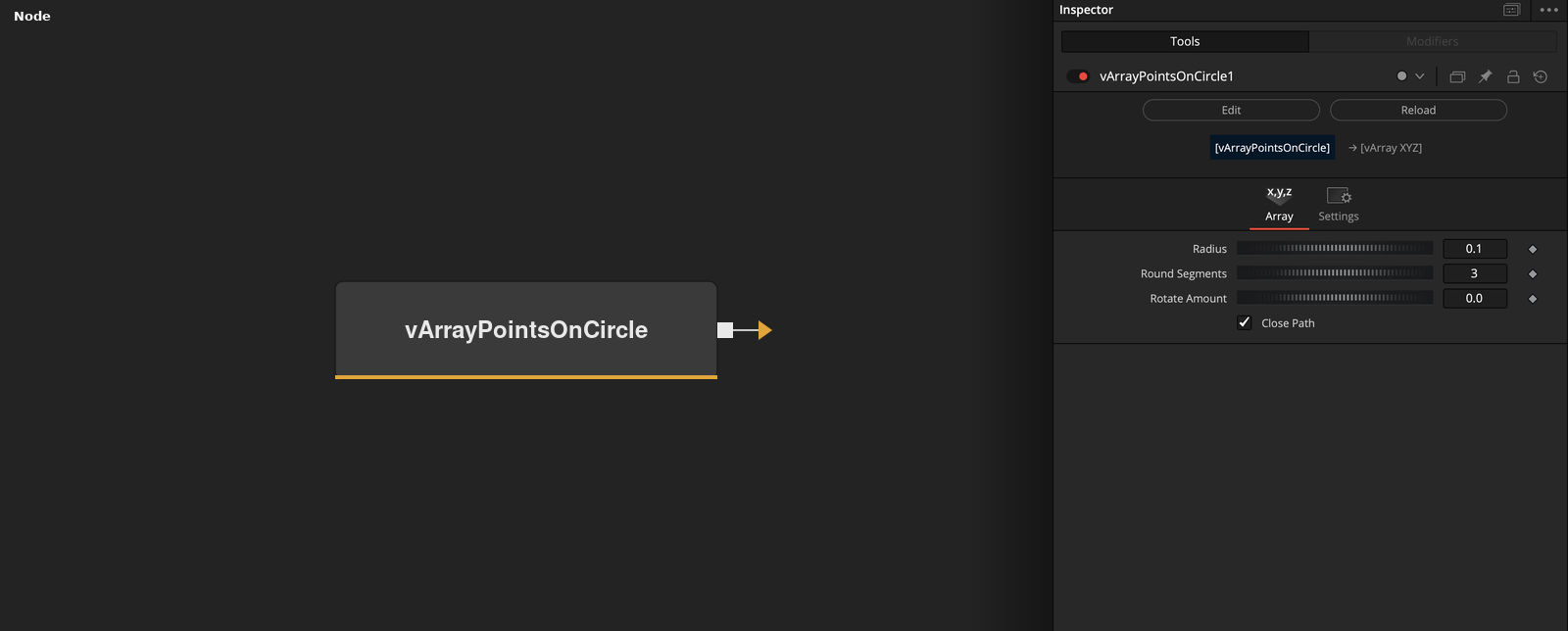
Select vArrayPointsOnCircle and raise Round Segments. This is the number of points distributed evenly around the full 360°, and its default is 1 — so the single dot you're looking at is correct behaviour, not a broken pipeline. Try 12.
While you're on that node:
- Radius (
0.1by default) is in normalised coordinates relative to frame width. Raise it to spread the ring outwards; try0.25. - Point Offset shifts which point counts as the start of the ring. Useful later, when you stack two rings and want them out of phase.
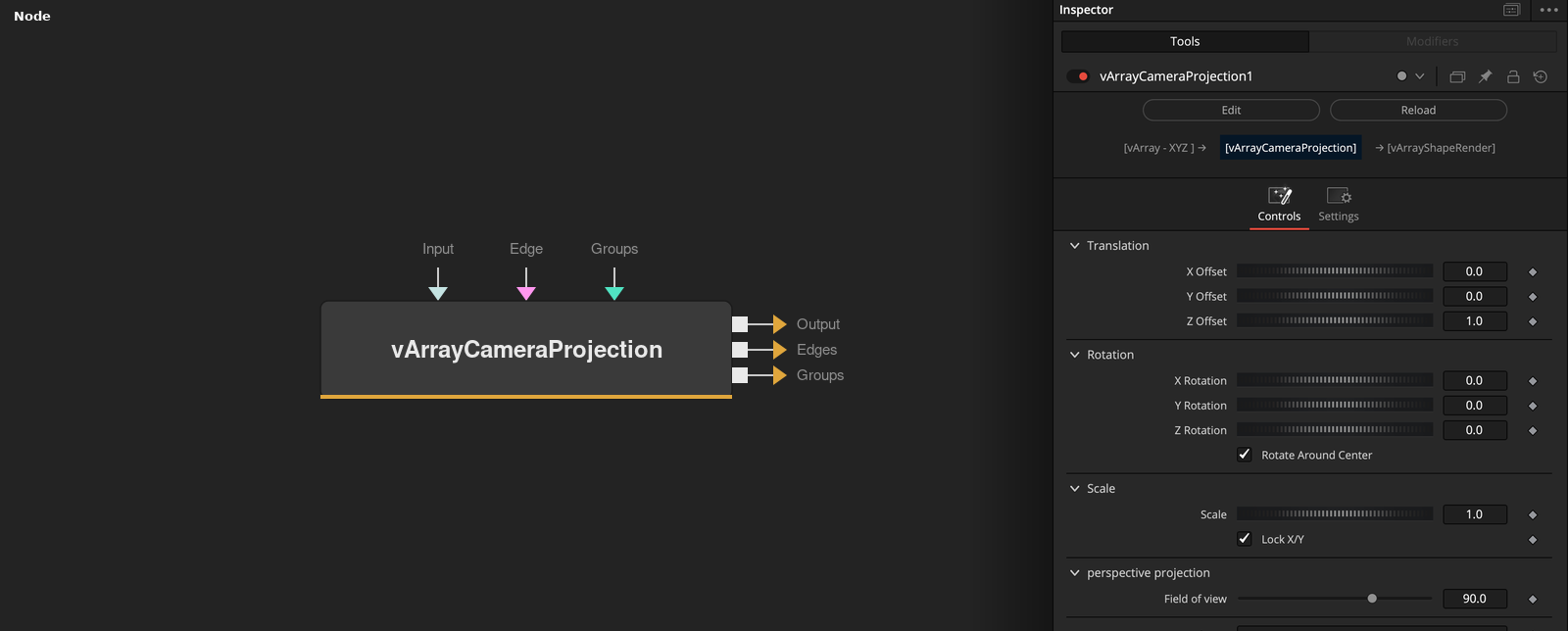
Now select vArrayCameraProjection. Z Offset (default 1.0) is the primary framing control — the camera's distance from the point cloud. Increase it to zoom out, decrease it to zoom in, until the ring sits where you want it.
Step 5 — Make it yours
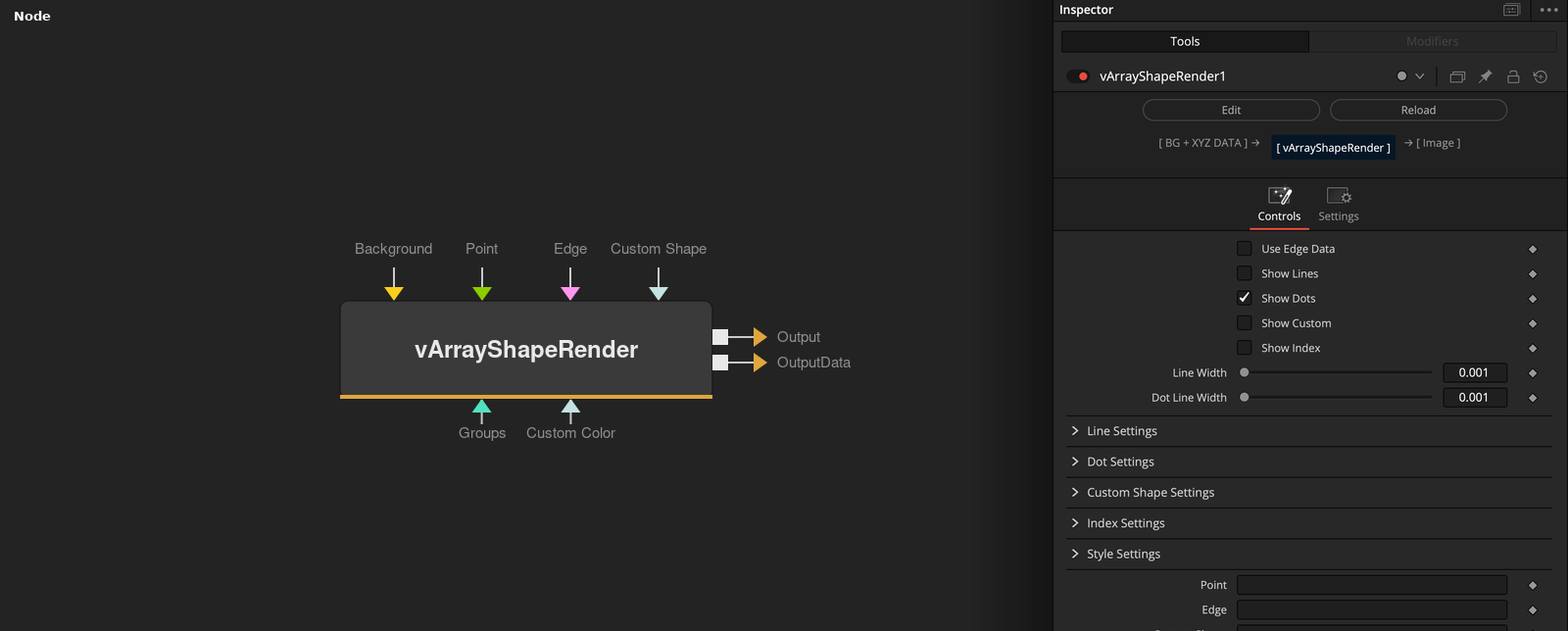
All of these are controls on vArrayShapeRender:
- Dot Sides —
6gives the hexagons.3is a triangle,4a square,32or more reads as a circle. - Dot Radius and Dot Color — size and RGBA colour of the dots.
- Show Lines — turns on the line layer, which connects the points in order. Set Line Width and Line Color to taste.
- Show Index — draws the array index at every point. Worth knowing: when a pipeline looks wrong, this tells you how the points are actually ordered.
- Render Outline Dots — adds a stroke around each dot; Dot Line Width sets how thick.
Step 6 — Make it move
None of this needs expressions. Three easy animations from parameters already on screen:
- Keyframe Rotate Amount on
vArrayPointsOnCircleto spin the ring in place. - Keyframe Z Rotation on
vArrayCameraProjectionto roll the projected output around the screen centre — a different look, because it rotates the camera rather than the geometry. - For a push-in, animate Z Offset on the camera.
Step 7 — Swap the front of the chain
The generator is the only part of this pipeline that's specific to the example. Each of these wires into vArrayCameraProjection Array A the same way:
vArrayPointsOnArc— a partial sweep instead of a full ring.vArrayPointsOnGrid— a regular grid.vArrayPointsOnSphere— a 3D sphere of points. Animate the camera's Y Rotation to orbit it.vArrayPhyllotaxis— the sunflower spiral.vArrayFromOBJ— points from a mesh. This one has a second output, Edges: connect it tovArrayShapeRender's Array Edge input and enable Use Edge Data to draw the mesh's real edges through the line layer, rather than joining sequential points.
Where to go next
- Core Concepts — why typing
vArrayin the picker lists what it does, and how the Mograph families relate. - Camera Projection Pipelines — the guide that takes this chain further: orbiting the camera, OBJ meshes, text, and all four render inputs.
- Reference: Mograph / Array — all 192 array nodes, grouped by function.
- Video Tutorials — worked examples, including the vJSON family in motion.